
Town Tech · Call or text 863-288-0123 · 217 Main Street, Auburndale, FL 33823
How to uninstall software
Simple steps with a picture: how to uninstall software.
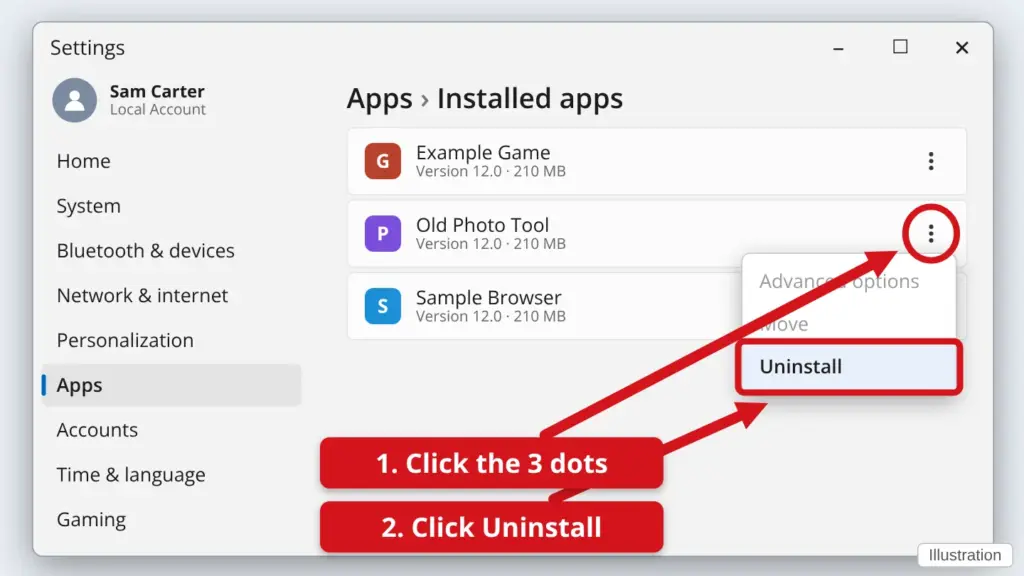
- Click Start, then click Settings (the gear).
- Click Apps, then Installed apps. On Windows 10 it is called Apps & features.
- Find the program in the list and click the three dots (⋮) at the right of its name. On Windows 10, click the program name instead.
- Click Uninstall, then click Uninstall again to confirm. Some programs open their own small window. Click Yes or Next and follow along.
Only remove programs you know you do not need. If you are not sure what something is, leave it alone and call us first.
Stuck? Call or text Town Tech at 863-288-0123. We are happy to help.
Find this guide online: townlearn.com/how-to-uninstall-software/
Still stuck? Call or text Town Tech: 863-288-0123 (Tue–Fri, 10 AM–4 PM)
Still stuck? Call or text Town Tech: 863-288-0123 (Tue–Fri, 10 AM–4 PM)