
Town Tech · Call or text 863-288-0123 · 217 Main Street, Auburndale, FL 33823
How to pin icons to taskbar
Simple steps with a picture: how to pin icons to the taskbar.
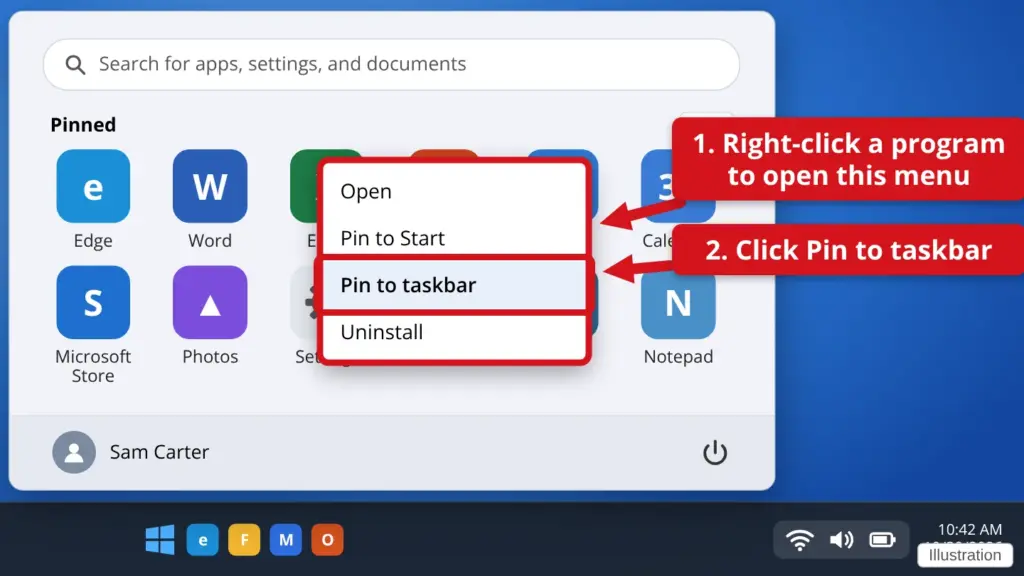
- Click Start.
- Find the program you want. Right-click it. If you do not see it, click All at the top right of the Start menu. Right-click means press the right button on your mouse.
- Click Pin to taskbar. On Windows 10, click More first, then Pin to taskbar.
- Look at the bar along the bottom. The icon now stays there. To remove it later, right-click the icon and click Unpin from taskbar.
Pinned icons give you one-click access to the programs you use most.
Stuck? Call or text Town Tech at 863-288-0123. We are happy to help.
Find this guide online: townlearn.com/how-to-pin-icons-to-taskbar/
Still stuck? Call or text Town Tech: 863-288-0123 (Tue–Fri, 10 AM–4 PM)
Still stuck? Call or text Town Tech: 863-288-0123 (Tue–Fri, 10 AM–4 PM)