
Town Tech · Call or text 863-288-0123 · 217 Main Street, Auburndale, FL 33823
How to delete a file and empty the Recycle Bin
Simple steps with a picture: how to delete a file and empty the Recycle Bin.
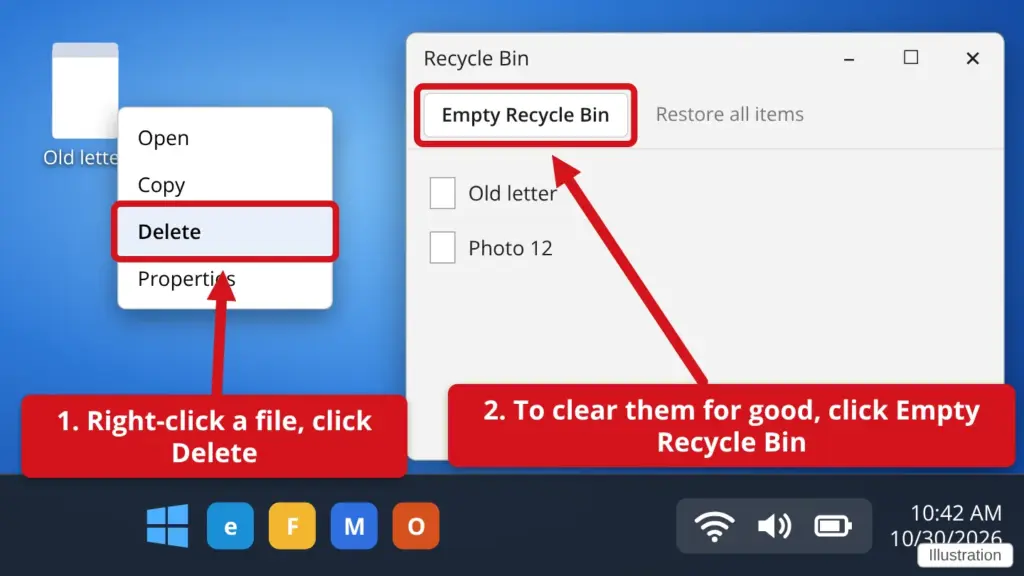
- Right-click the file and click Delete. You can also click the file once and press the Delete key. The file goes to the Recycle Bin. It is not gone for good yet.
- To look inside, double-click the Recycle Bin icon on your desktop.
- To get a file back, right-click it and click Restore.
- To clear everything for good, click Empty Recycle Bin at the top, then click Yes. You cannot undo this, so check the list first.
Emptying the Recycle Bin frees up space on your computer.
Stuck? Call or text Town Tech at 863-288-0123. We are happy to help.
Find this guide online: townlearn.com/how-to-delete-a-file-and-empty-the-recycle-bin/
Still stuck? Call or text Town Tech: 863-288-0123 (Tue–Fri, 10 AM–4 PM)
Still stuck? Call or text Town Tech: 863-288-0123 (Tue–Fri, 10 AM–4 PM)