
Town Tech · Call or text 863-288-0123 · 217 Main Street, Auburndale, FL 33823
How to make favorites in Chrome
Simple steps with a picture: how to make a favorite in Chrome.
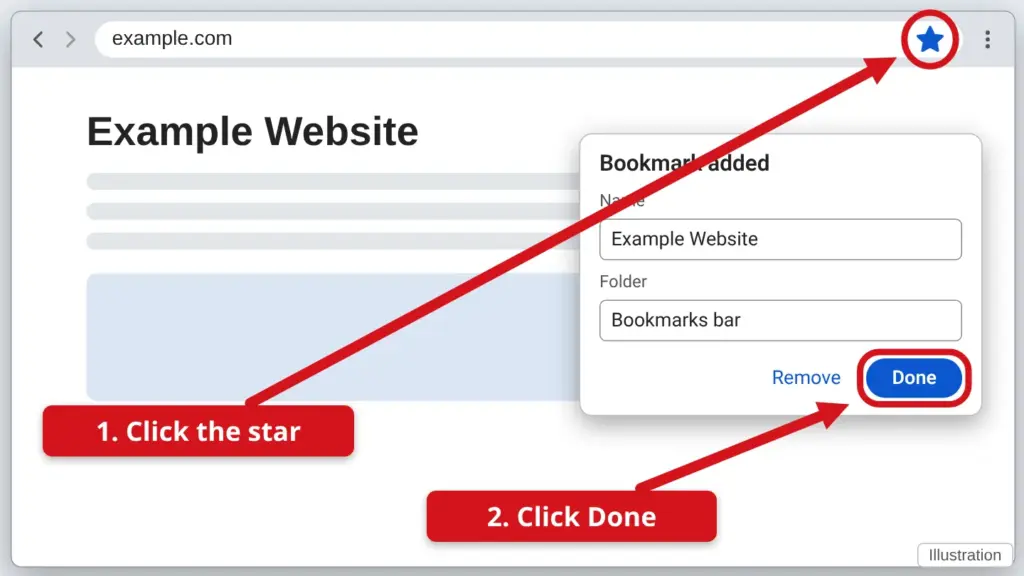
- Open the website you want to save.
- Click the star at the right end of the address bar. Chrome calls favorites bookmarks.
- A small box says Bookmark added. Click Done. You can change the name if you like.
- To open it later, click the three dots (⋮) at the top right, then Bookmarks and lists. To keep your bookmarks in a row under the address bar, press Ctrl + Shift + B together.
The star turns blue when the page is saved.
Stuck? Call or text Town Tech at 863-288-0123. We are happy to help.
Find this guide online: townlearn.com/how-to-make-favorites-in-chrome/
Still stuck? Call or text Town Tech: 863-288-0123 (Tue–Fri, 10 AM–4 PM)
Still stuck? Call or text Town Tech: 863-288-0123 (Tue–Fri, 10 AM–4 PM)