
Town Tech · Call or text 863-288-0123 · 217 Main Street, Auburndale, FL 33823
How to enable cookies in Firefox
Simple steps with a picture: how to enable cookies in Firefox.
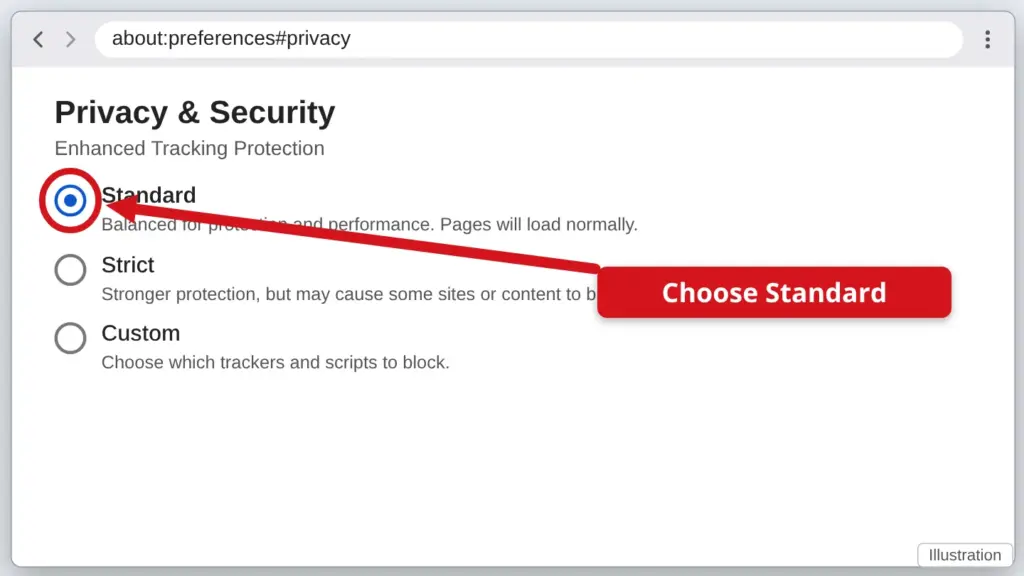
- Click the three-line menu (☰) at the top right, then click Settings.
- Click Privacy & Security on the left.
- Under Enhanced Tracking Protection, choose Standard. Standard lets websites use normal cookies while still blocking trackers.
- If it says Custom, open it and make sure Cookies is not set to block everything. Then close Settings and reload the website.
Cookies are small notes a website saves so it remembers you, for example to keep you signed in.
Stuck? Call or text Town Tech at 863-288-0123. We are happy to help.
Find this guide online: townlearn.com/how-to-enable-cookies-in-firefox/
Still stuck? Call or text Town Tech: 863-288-0123 (Tue–Fri, 10 AM–4 PM)
Still stuck? Call or text Town Tech: 863-288-0123 (Tue–Fri, 10 AM–4 PM)