
Town Tech · Call or text 863-288-0123 · 217 Main Street, Auburndale, FL 33823
How to Set Up Your Printer (Wi-Fi or USB Cable)
Connect a printer to your Windows computer, wirelessly or with a USB cable, and print a test page.
Before you start: plug the printer in, turn it on, and put in paper and ink or toner. Remove any tape and orange plastic from the cartridges. Have your Wi-Fi name and password handy if you want a wireless printer.
Jump to: Wireless (Wi-Fi) printer USB cable Print a test page If it does not work
Connect a printer wirelessly (Wi-Fi)
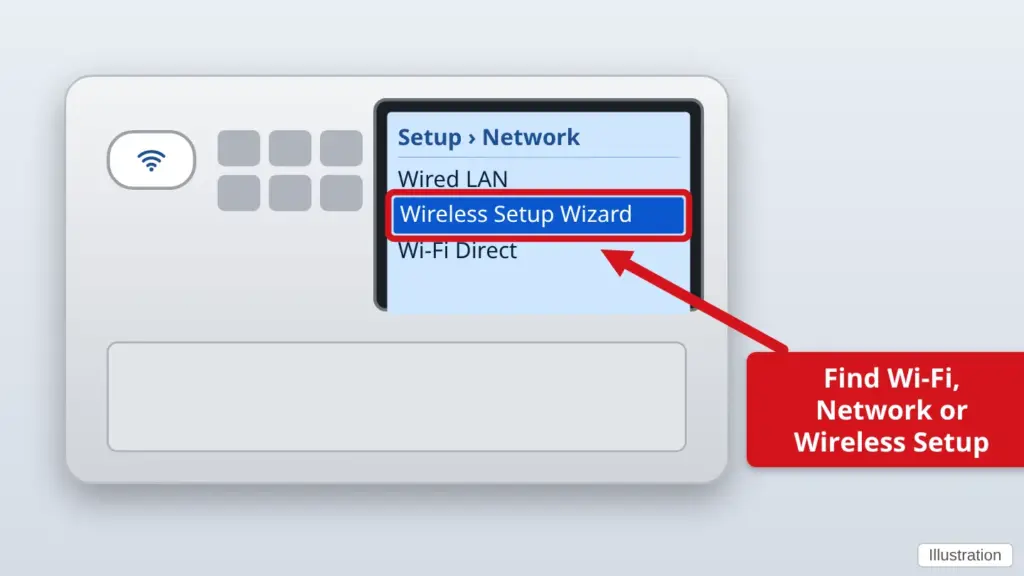
- Put the printer on your Wi-Fi. On the printer’s own screen, open Settings or Network (look for the Wi-Fi symbol) and choose Wireless Setup Wizard or Connect to Wi-Fi. Pick your network and type your Wi-Fi password. When it works, a steady Wi-Fi light or a message says Connected. Menus differ by brand – your printer’s name and the words “wireless setup” in a web search will show the exact buttons.
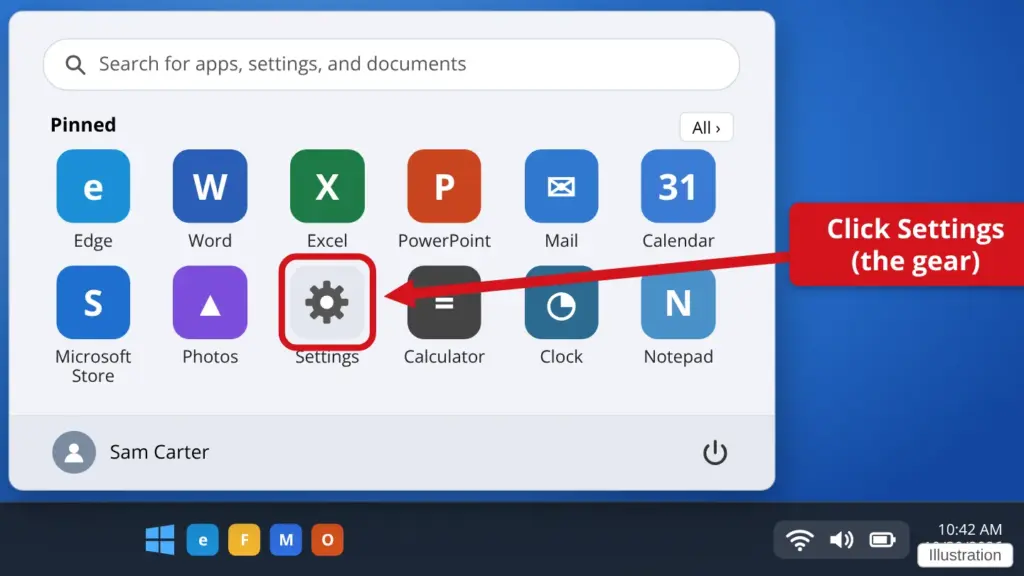
- Open Settings on your computer. Click Start, then the gear icon named Settings.
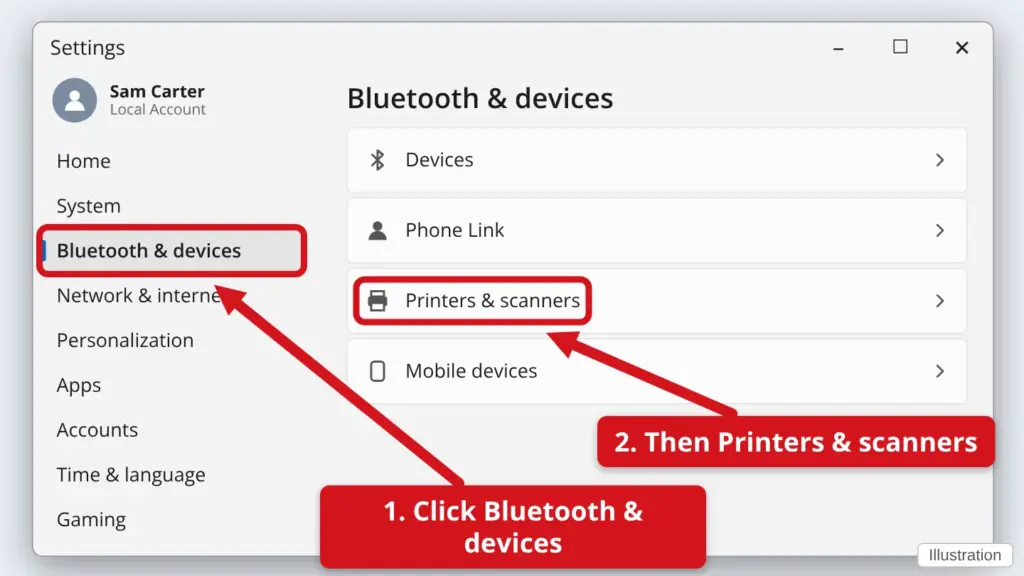
- Click Bluetooth & devices, then Printers & scanners.
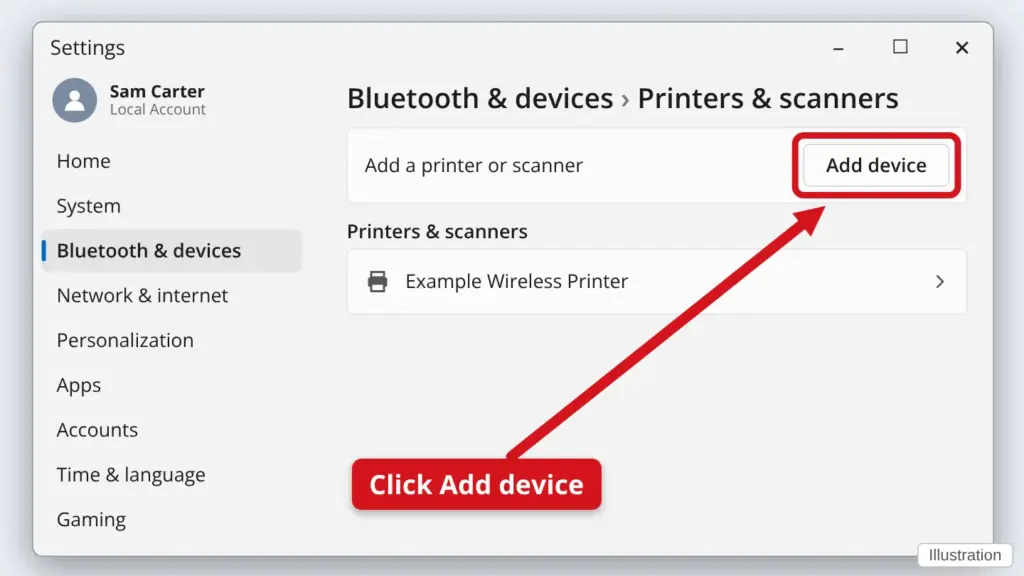
- Click Add device. Wait a few seconds. Your printer’s name should appear in the list.
- Click Add device beside your printer. Windows installs it. When it says the printer is ready, you are done.
- Printer not in the list? Click Add manually (or The printer that I want isn’t listed) and choose Add a printer using an IP address or hostname. Or install the maker’s free app: HP Smart, Epson Smart Panel, Canon PRINT or Brother iPrint&Scan. The app will find the printer for you.
Connect a printer with a USB cable
- Turn the printer on. Leave the USB cable unplugged for now.
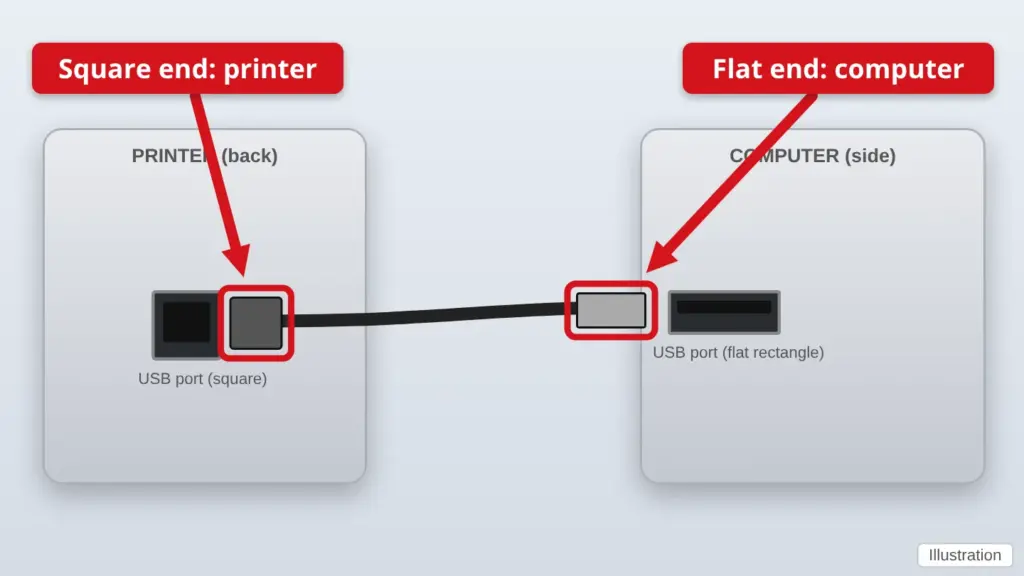
- Plug the cable in. The square end goes in the back of the printer. The flat rectangular end goes into a USB port on your computer.
- Wait a minute or two. Windows should say Setting up and then Ready. Do not unplug anything while it works.
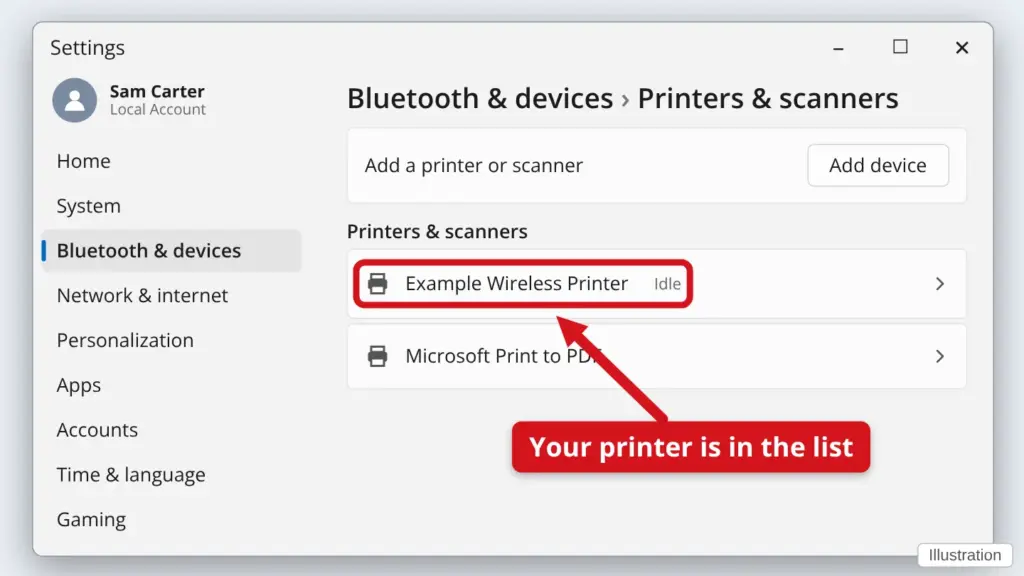
- Check that it was added. Go to Settings → Bluetooth & devices → Printers & scanners. Your printer should be in the list.
- Nothing happened? Go to your printer maker’s website (HP, Epson, Canon, Brother…), search for your printer’s model number (it is on the front or top of the printer), and download the driver or “Full Software and Drivers.” Open the file and follow the steps.
Print a test page
- Go to Printers & scanners. Settings → Bluetooth & devices → Printers & scanners.
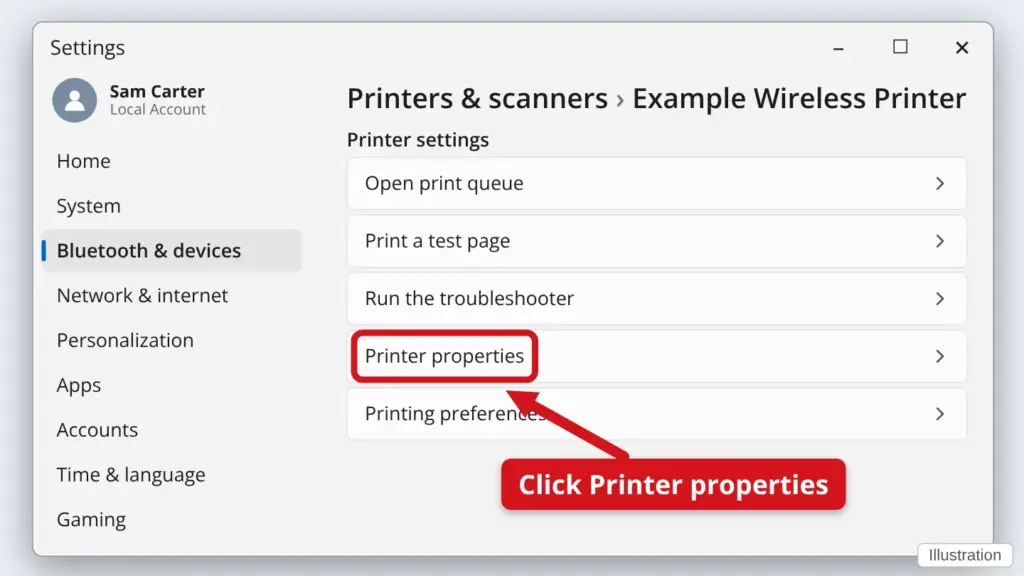
- Click your printer, then Printer properties.
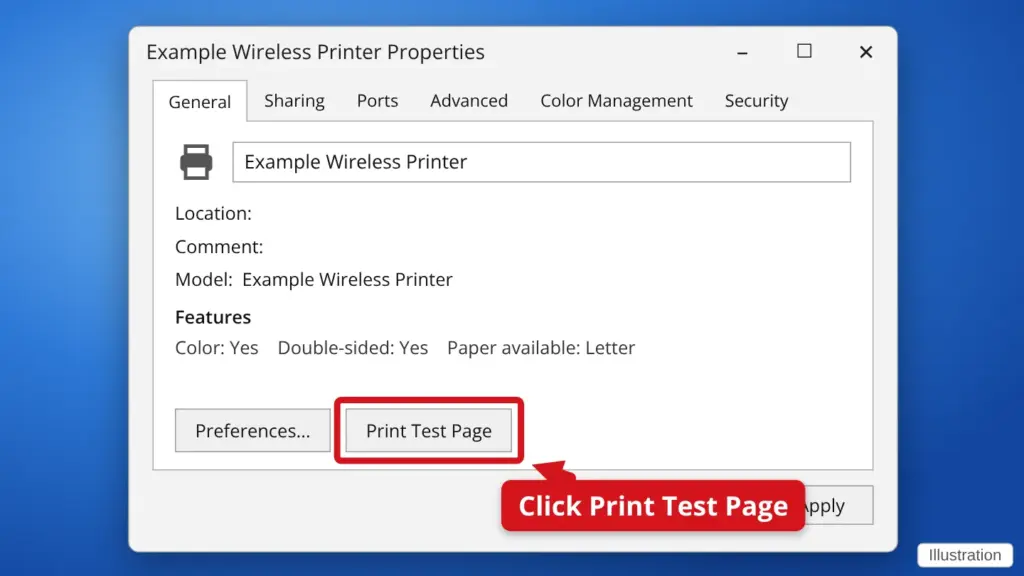
- Click Print test page. A page should come out of the printer.
If it does not work
- Is the printer on the same Wi-Fi as your computer? Some routers have a separate “guest” or “5G” network. Use the same network name on both.
- Restart everything. Turn off the printer and unplug it for 30 seconds. Restart the computer. Then turn the printer back on.
- Look for a message on the printer. Paper jam, empty ink or an open door will stop everything.
- Does your printer have an Ethernet (network cable) port? Call us and we can help you set that up.
Find this guide online: townlearn.com/printer/
Still stuck? Call or text Town Tech: 863-288-0123 (Tue–Fri, 10 AM–4 PM)
Still stuck? Call or text Town Tech: 863-288-0123 (Tue–Fri, 10 AM–4 PM)