
How to Get Back Into Your Facebook or Microsoft Account
Forgot your Facebook or Microsoft password? Reset it with the official recovery pages, step by step.
Stay safe: Only use the official web addresses shown on this page. Do not search for a “Facebook support phone number” or “Microsoft support number” – scammers pay for ads that show fake numbers. And never tell anyone the code you receive.
Jump to: Facebook Microsoft (Outlook, Hotmail, Xbox, Windows)
Get back into Facebook
- Go to the Facebook recovery page. Open your web browser and go to facebook.com/login/identify. You can also click Forgotten password? on the Facebook login page.
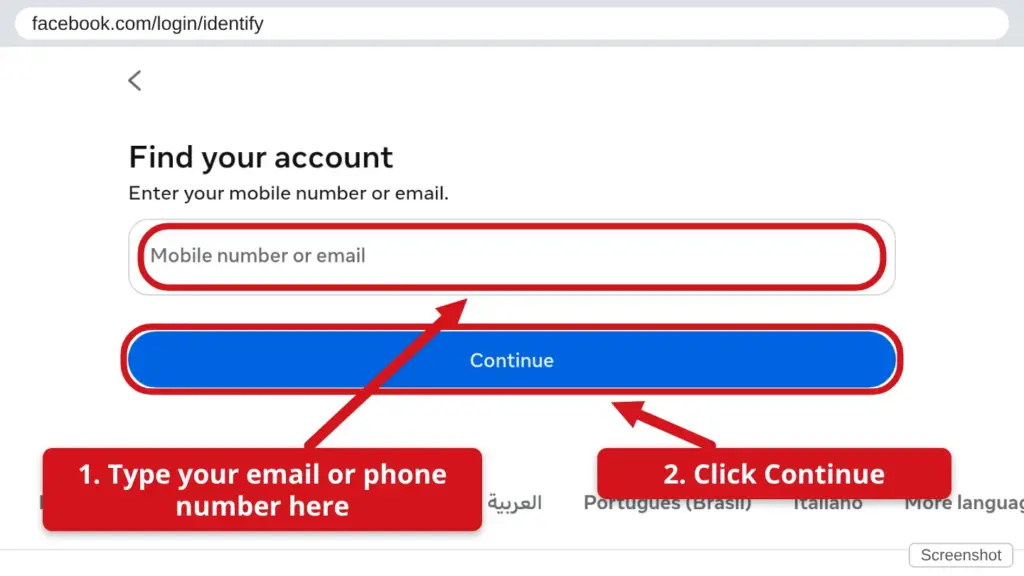
- Search for your account. Type the email address, mobile number or name you used to sign up, then click Continue (some older pages say Search).
- Pick your account. Click This is my account on the one that is yours.
- Choose where to get your code. Pick email or text message, then click Continue.
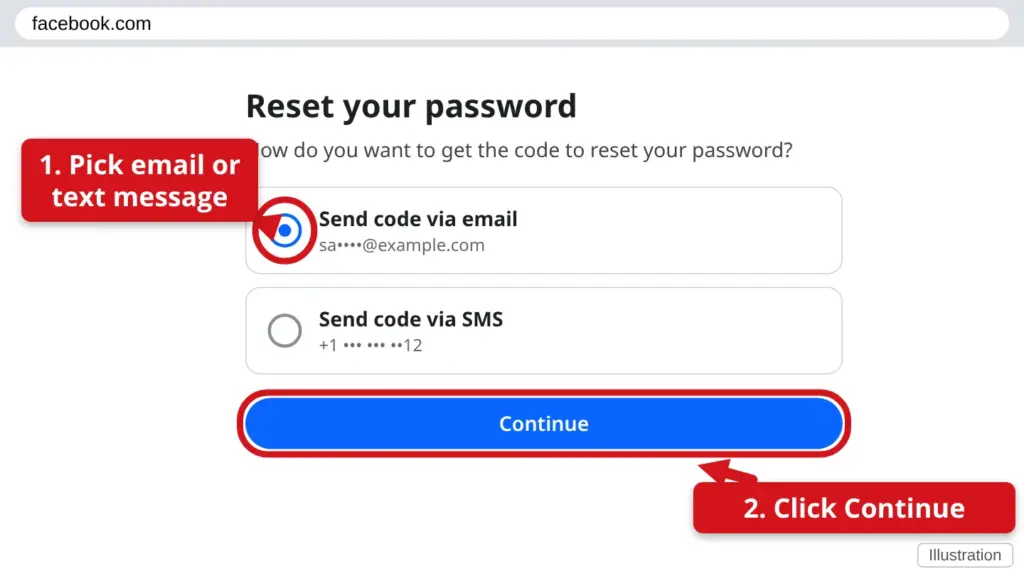
- Get the 6-digit code. Check your email (look in Spam or Junk too) or your text messages. Type the code into Facebook and click Continue.
- Make a new password. Choose one you have not used before and can remember. Click Continue. If Facebook asks, choose to log out of other devices.
No longer have that email or phone? On the code screen click No longer have access to these? and follow the steps. If you think someone else took over your account, go to facebook.com/hacked. Or call us and we will sit down with you.
Get back into your Microsoft account
Your Microsoft account is the email address you use for Outlook.com, Hotmail, Xbox, OneDrive and signing in to Windows.
- Go to the Microsoft reset page. Open your web browser and go to account.live.com/password/reset.
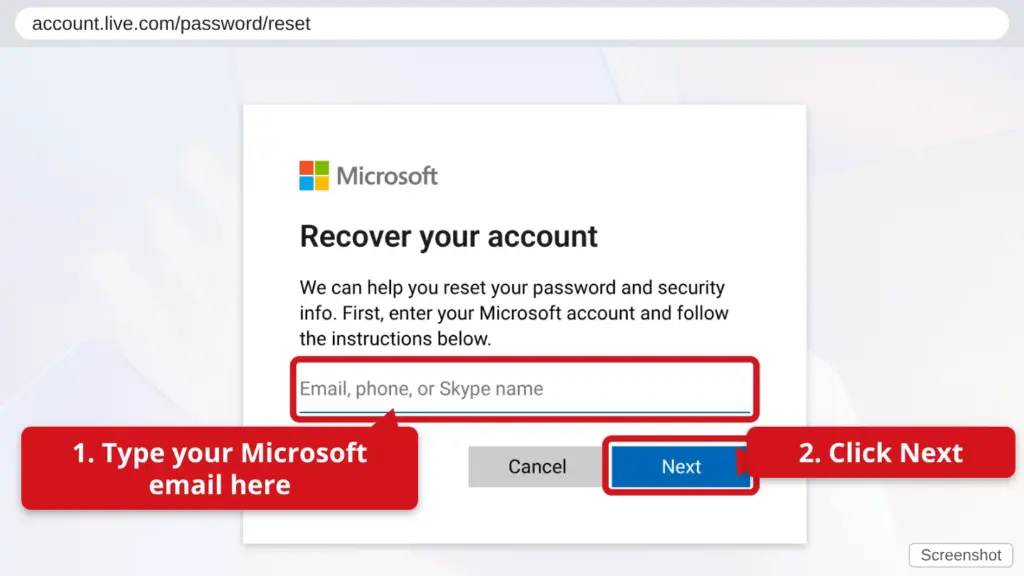
- Type your email address, phone number or Skype name. Then click Next.
- Choose how to get a code. Microsoft shows part of your email or phone number. Pick one. You may need to type the whole address or number to prove it is yours. Click Get code.
- Type the code you received. Check your email (and Spam or Junk) or your text messages. Click Next.
- Make a new password. Type it twice, click Next, then sign in with it.
Cannot get a code? Choose I don’t have any of these and Microsoft will offer a recovery form (account.live.com/acsr). Answer as many questions as you can. They email you their answer, which can take a day or more.
Still stuck? Call or text Town Tech: 863-288-0123 (Tue–Fri, 10 AM–4 PM)